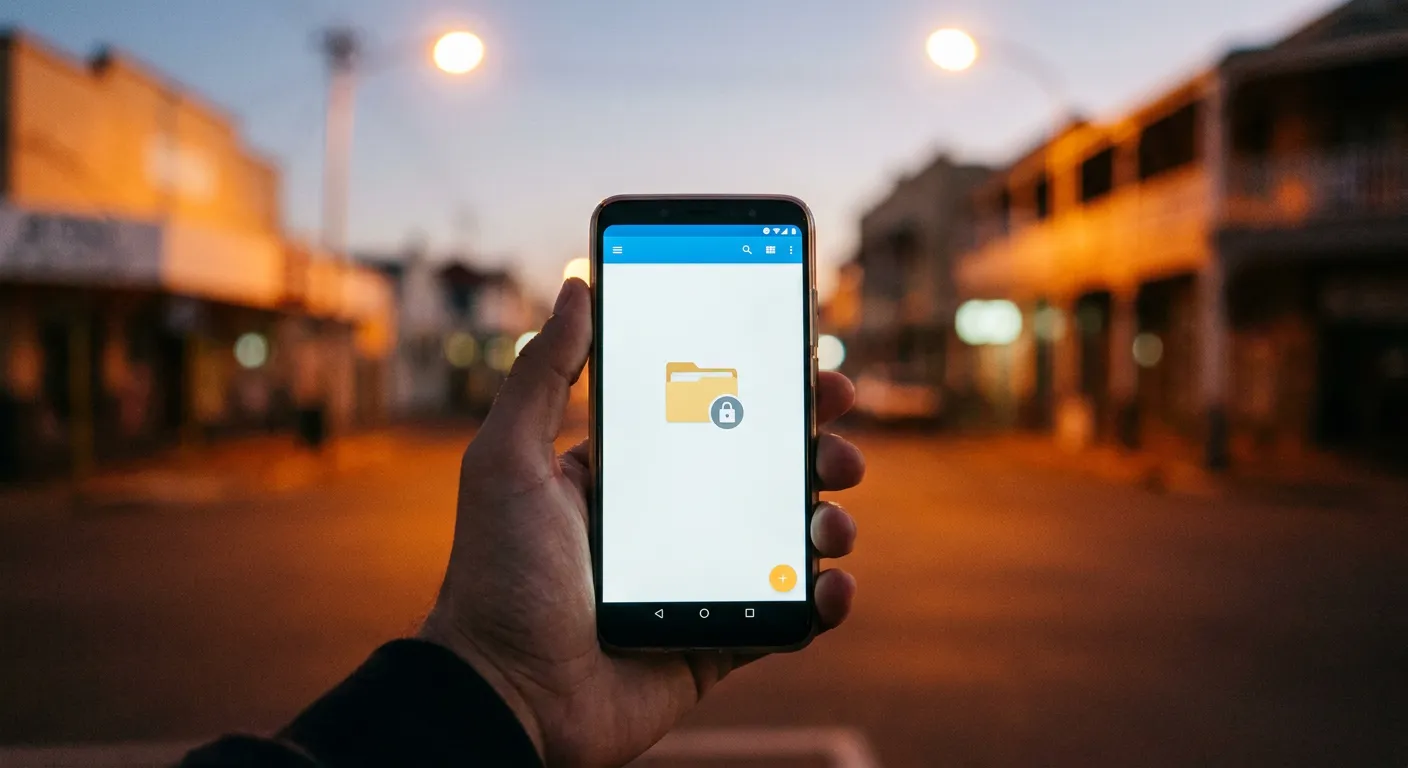
If you've extracted the GTA Mzansi OBB file in ZArchiver and then hit a wall trying to actually get it into the right folder - a permission popup, a "can't access this location" message, or the copy just silently not happening - you're not doing anything wrong. This isn't a ZArchiver bug and it isn't a broken download. It's Android itself getting stricter about this exact folder over the last few versions, and almost nobody explains that part before throwing generic steps at you.
Here's what's actually going on, and the specific button you need to tap that most guides skip.
Why This Got Harder (It's Not You)
Up through Android 10, copying files into Android/obb was straightforward - grant a file manager storage access and it could write wherever it wanted. Starting with Android 11, Google began locking that down, treating Android/data and Android/obb as sensitive folders that apps shouldn't be able to freely browse into. Android 13 tightened it further, closing off some of the workarounds file managers had been using. Then in March 2024, a security patch went out that removed the ability to grant blanket access to these folders at all - and that change doesn't get reversed by a settings toggle. It's permanent for any device that's received it.
Practically, that means: if your phone is on Android 11 or newer and has picked up recent security updates, ZArchiver asking for a general "access all files" permission won't be enough to let it write into Android/obb. That's the wall people are hitting, and it explains why a method that worked fine on an older phone (or an older Android version on the same phone) suddenly doesn't.
Check Your Android Version First
Before troubleshooting any of this, it's worth thirty seconds to check what you're actually dealing with. Go to Settings > About Phone > Android Version. If you're on Android 10 or below, none of the folder-restriction stuff above applies to you - copy the extracted folder over the old-fashioned way and you're done. If you're on Android 11 through 13 (or newer), that's when the folder-specific grant method becomes the thing to get right, and knowing your exact version in advance saves you from troubleshooting a problem you don't actually have.
Why Google Locked This Down
The stated reason from Google is privacy: Android/data and Android/obb folders can hold information specific to other installed apps, and letting any file manager freely browse into them was treated as a bigger risk than the inconvenience it now causes. That's cold comfort when you're stuck mid-install, but it explains why this isn't a bug ZArchiver can just patch around on their end - it's a restriction baked into Android itself that every file manager has to work within the same way.
The Fix That Actually Works: Folder-Specific Access
The good news is there's a legitimate, non-root way through this, and it's built into how ZArchiver and Android are designed to work together now - it's just not obvious unless someone tells you.
Instead of relying on ZArchiver's general storage permission, you grant it access to the exact folder you're trying to reach, through Android's own folder picker:
- Open ZArchiver and navigate as far as you can toward Android/obb - you'll likely hit a permission prompt before you get all the way in.
- When ZArchiver asks you to pick the folder through the system dialog, let it open Android's built-in folder browser rather than backing out.
- Navigate that system browser to Android > obb (or straight to the com.rockstargames.gtasa folder if it already exists from a previous install attempt).
- Tap the folder once to select it, then look for the button in the corner of that screen - it'll say something like "USE THIS FOLDER." That's the one that matters. A quick "select" or "open" tap alone doesn't grant the access; it has to be that specific confirmation button.
- Confirm the permission dialog that follows. ZArchiver now has scoped access to that one folder specifically - not your whole phone, just that path.
This is different from just toggling "All files access" in your phone's app settings, which is the step most tutorials stop at and the reason so many people still get stuck. The folder-specific grant is the part that's actually required for Android/obb on modern versions.
If Your Phone Still Won't Cooperate
Android's behavior here isn't perfectly consistent across every manufacturer's version of Android - some phones (particularly certain Samsung and Xiaomi builds) alter default file access flows in their own skins, and the exact wording or position of the "USE THIS FOLDER" button can shift slightly between Android versions. If ZArchiver's picker genuinely won't let you select or confirm the obb folder no matter what you try, that's usually a sign of a manufacturer-specific quirk rather than something wrong with the file itself. In that situation, players sometimes have better luck with a different file manager that's been more recently updated for their specific Android version - this isn't a GTA Mzansi problem to fix, it's a general Android sideloading issue that affects any OBB-based game, not just this one.
Worth knowing: a lot of budget and older Android phones still common across South Africa either predate Android 11 entirely or haven't picked up the March 2024 patch and likely never will, since manufacturers stop pushing security updates to older models. If that's your device, the classic "just copy the folder over" method probably still works exactly like it always did, and none of this applies to you.
Common ZArchiver Mistakes That Break the Install
A few things trip people up in ZArchiver itself, separate from the permission issue above:
- Extracting into a new sub-folder instead of directly where the com.rockstargames.gtasa folder needs to sit. If ZArchiver's extraction dialog offers a destination choice, make sure you're not creating an extra nested layer - the game needs the folder itself in Android/obb, not a folder containing that folder.
- Trying to open a multi-part archive (files ending in .part1.rar, .part2.rar, and so on) by tapping only the first part. Mod files get split like this because a lot of free file hosts cap individual upload sizes, and a 2GB OBB won't fit in one piece. ZArchiver needs all the parts sitting in the same folder to reconstruct the full archive - if any part is missing or renamed, extraction will fail or produce a corrupted result.
- Ignoring a "CRC error" or "unsupported format" message and assuming the extraction still worked. Both usually mean the original download was incomplete - re-download rather than trying to force a broken archive through.
The Full Process, Start to Finish
- Download the APK and OBB from a source that states the version and file size upfront.
- Open ZArchiver, locate the OBB archive, and extract it - watch for the permission prompt and use the folder-specific grant method above if Android asks for it.
- Confirm the extracted folder is named to match the package (com.rockstargames.gtasa) and sits directly inside Android/obb, not nested inside another folder.
- Install the APK, enabling Install from Unknown Sources if prompted.
- Launch the game and let it read the OBB data on first boot.
❓Frequently Asked Questions
Why can't ZArchiver access my Android/obb folder anymore?+
Android has progressively restricted third-party app access to this folder since Android 11, with a March 2024 security patch removing the old blanket-permission method entirely on devices that received it. It's a platform-level change, not a ZArchiver problem.
Do I need to root my phone to fix this?+
No, for most people. Granting ZArchiver folder-specific access through Android's own picker - the "USE THIS FOLDER" step - works without root on the majority of devices. Root is only a fallback for phones where that method genuinely doesn't work.
Why does the classic copy-paste method still work for some people?+
Older Android versions and many budget or older devices that haven't received the March 2024 security patch aren't affected by this restriction, so the traditional method still works fine on those phones.
What does it mean if ZArchiver shows a CRC error?+
It usually means the archive didn't download completely or got corrupted in transit. Re-download the file rather than trying to force the extraction through.
Why does my extracted folder not work even after I placed it correctly?+
Double-check it isn't nested inside an extra folder, and confirm the folder name matches com.rockstargames.gtasa exactly - a slight rename or an extra layer is the most common reason a correctly-placed OBB still doesn't get picked up.
Where This Leaves You
If ZArchiver's been fighting you on this, it's very likely the Android 11+ folder restriction, not a bad download or a mistake on your part. The folder-specific "USE THIS FOLDER" grant is the actual fix for most modern phones, and it's worth trying before assuming you need root access or a different approach entirely. Once that permission's granted properly, extracting and placing GTA Mzansi's OBB works exactly the way every tutorial assumes it will.
Popular GTA Mzansi Resources
GTA Mzansi is an independent, fan-created modification celebrating South African culture within the GTA universe. Not affiliated with Rockstar Games or Take-Two Interactive. For entertainment purposes only - use mods at your own risk.